

If you are planning to study at a public university or TVET college in South Africa, applying for financial aid through the National Student Financial Aid Scheme (NSFAS) is a crucial step.
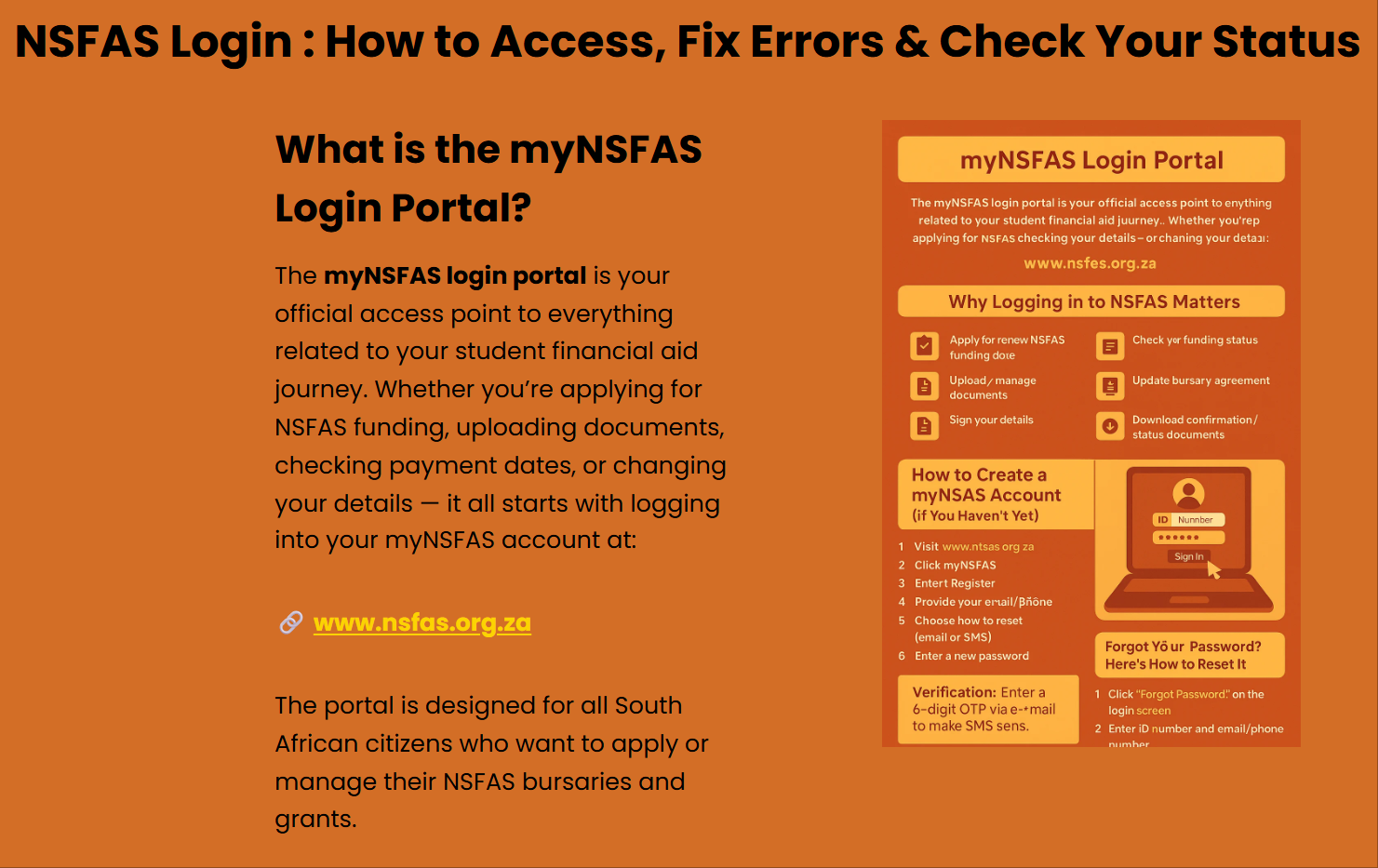
Before submitting an application for funding, you must first register and create a myNSFAS account. This portal allows you to apply for funding, upload supporting documents, check your application status, and track allowance disbursements.
What You Need Before You Begin
Before starting your registration process, make sure you have the following information and documents ready:
- Valid South African Identity Document (ID) or ID number (or Passport number if applicable).
- Personal Email Address (ensure it is active and accessible to you).
- Cell Phone Number (must be active to receive OTP verification codes).
- Digital Copies of your ID document (for verification if required).
Step-by-Step Guide: How to Register Your myNSFAS Account
Follow these steps to successfully set up your profile on the official portal:
Step 1: Visit the Official Portal
Go directly to the official myNSFAS Student Portal. Avoid using third-party links or unofficial websites to keep your personal information secure.
Step 2: Navigate to Registration
On the homepage, click on the “myNSFAS Account” tab located in the top navigation bar, then select “Create Account”.
Step 3: Enter Your Personal Details
Fill in the required information accurately:
- First Name(s) and Surname (as they appear on your ID document).
- South African ID Number.
- Valid Email Address and Mobile Phone Number.
Step 4: Set Up Security & Password
- Create a strong, memorable password containing a mix of uppercase letters, lowercase letters, numbers, and special characters.
- Re-enter your password to confirm it.
Step 5: Verify Your Account (OTP)
- Click “Submit” or “Create Account”.
- A One-Time Pin (OTP) will be sent to your registered mobile number and email address.
- Enter the OTP on the portal screen to complete the verification process.
Once verified, your myNSFAS account is officially created, and you can immediately log in to start your bursary application.
Important Security & Troubleshooting Tips
- One Profile Per Student: You can only create one myNSFAS profile per ID number.
- Keep Details Updated: Use an email address and phone number you intend to keep long-term, as all official updates and OTPs will be sent there.
- Do Not Share Credentials: Keep your password confidential to prevent unauthorized access or fraud.
- Having Issues? If you encounter errors during account registration, visit the NSFAS Official Website or contact their help desk via social media or toll-free support.
Common Issues & Solutions
| Issue | Cause | Solution |
| “ID Already Registered” | A profile was created during a previous application cycle. | Click “Forgot Password” or contact NSFAS support to recover access rather than creating a new account. |
| OTP Not Received | Network congestion or incorrect mobile number. | Wait 5 minutes, click “Resend OTP”, or check your email spam folder. |
| System Timeout | Inactivity during registration. | Refresh the browser, clear cache, and start the form again. |
Export to Sheets
What to Do After Creating Your Account
- Log In: Return to the myNSFAS Login Page using your ID number and newly created password.
- Apply for Funding: Click on the “Apply” tab to start your bursary application for the upcoming academic year.
- Upload Supporting Documents: Attach certified copies of your ID, parents’/guardians’ IDs, and proof of household income.
- Track Status: Monitor your portal dashboard regularly for updates regarding your funding approval and allowance disbursements.