

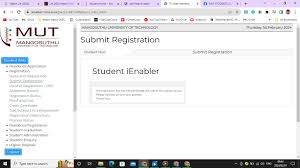
Because Mangosuthu University of Technology (MUT) processes its first-year applications through the Central Applications Office (CAO), uploading your supporting documents correctly is a critical step in securing your admission. Failing to upload clear, certified documents can stall or completely halt your application status.
Below is a straightforward guide on how to upload your documents, what you need, and the direct portals to use.
The Direct Links to Upload MUT Documents
Depending on whether you are a new applicant or a currently registered student updating their file, choose the correct link below:
- For Prospective / New Applicants (via CAO):🔗 Direct CAO Document Upload Portal (This is the primary gateway for all MUT applicants).
- For Returning / Registered MUT Students:🔗 Direct MUT Student iEnabler Portal (Used if MUT requests documents directly during registration periods).
Required Supported Documents Checklist
Before logging in, make sure you have digital copies of your documents ready.
- All documents must be clear scans (PDF or JPEG formats are preferred).
- If requested by MUT directly, documents must be certified copies not older than 3 months.
| Document Type | Specification |
| Identity Document (ID) | Clear copy of your South African ID or Passport (for international students). |
| Academic Results | Final Grade 11 results, mid-year Grade 12 results, or your National Senior Certificate (Matric). |
| Next of Kin ID | A copy of your parent or guardian’s ID document. |
| Proof of Residence | Utility bill or official letter confirming your physical address (often required for housing). |
Step-by-Step Guide: How to Upload via the CAO Portal
Since all undergraduate applications for MUT are processed through the Central Applications Office, use these steps to upload your certificates:
1
Log In to Your Profile
Requires CAO Number
1.Log In to Your Profile:Requires CAO Number.
Go to the official CAO Login Page. Enter your CAO Number and the password/PIN created during your initial application.
2
Navigate to Document Upload
Check menu options
2.Navigate to Document Upload:Check menu options.
Once logged into your dashboard, look at the available options and click on the link that explicitly says “Upload Documents”.
3
Select the Document Type
Match filenames correctly
3.Select the Document Type:Match filenames correctly.
The system will display slots for different files (e.g., ID Copy, Matric Certificate). Select the category that matches the file you are about to upload.
4
Choose File and Upload
Max size limits usually apply
4.Choose File and Upload:Max size limits usually apply.
Click “Choose File” or “Browse”, locate the document on your smartphone or computer, and click “Upload”. Ensure the file size is under the portal’s limit (usually less than 2MB per file).
5
Verify and Confirm
Crucial final check
5.Verify and Confirm:Crucial final check.
Review the uploaded files to make sure they are legible and attached to the right categories. Save or submit your changes to finalize.
Critical Troubleshooting Tips
- “Document Status is still Outstanding”: The CAO and MUT systems can take up to 24 to 48 hours to process and refresh your uploaded documents. Do not panic if it doesn’t change to “Received” instantly.
- File Format Errors: If the portal rejects your file, check the extension. Ensure it is a .pdf, .jpg, or .jpeg. Document portals do not accept Word documents (.docx) or files that are password-protected.
- Physical Verification: Keep in mind that for specific programs or late updates, MUT may require you to bring original hard copies to the MUT Main Campus (Admissions Office) for physical verification before you can fully register.
Conversation
0 Comments