

Applying to the Tshwane University of Technology (TUT) for the 2027 academic year requires applicants to upload all required supporting documents correctly through the online application portal. Missing or incorrect documents can delay your application or result in rejection.
This detailed guide explains how to upload supporting documents on the TUT online application portal for 2027 admission, including the direct upload link, required documents, troubleshooting tips, and frequently asked questions.
TUT Online Application Portal for 2027
Applicants can upload supporting documents through the official Tshwane University of Technology online application system.
Direct Link to TUT Online Application Portal
TUT Online Application Portal
Official TUT Website
Tshwane University of Technology Official Website
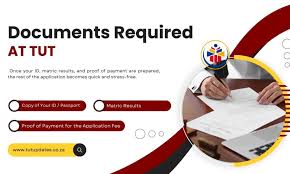
Supporting Documents Required for TUT 2027 Applications
Before starting the upload process, prepare certified and clear electronic copies of your documents in PDF, JPG, or PNG format.
TUT commonly requires the following supporting documents:
- Certified copy of South African ID or passport
- Latest Grade 11 results
- Grade 12 / Matric certificate (if completed)
- Proof of payment for application fee (if applicable)
- Academic transcripts and certificates for transfer students
- Proof of residence (where required)
- Marriage certificate or affidavit (if surname differs)
- Study permit or visa for international students
Certain courses may require additional documents such as portfolios or work experience letters.
Step-by-Step Guide to Upload Supporting Documents on TUT Portal
Follow these instructions carefully to upload your supporting documents successfully for the 2027 intake.
Step 1: Visit the Official TUT Application Portal
Open the official TUT online application portal:
Step 2: Log In to Your Applicant Profile
Use your:
- Student number or application number
- PIN or password
Click the Login button to access your student portal dashboard.
Step 3: Access the Student iEnabler Dashboard
After logging in:
- Navigate to the application section
- Check for outstanding document notifications
- Select the document upload option
Applicants are advised to regularly monitor their status for pending uploads or additional requirements.
Step 4: Select the “Upload Supporting Documents” Option
On your dashboard:
- Locate the upload menu
- Click Upload Supporting Documents
The system will display document categories that must be submitted.
Step 5: Choose the Correct Document Category
Select the relevant category before uploading each file, such as:
- ID Document
- Academic Results
- Passport Copy
- Proof of Payment
- Qualification Certificates
Uploading files under the wrong section may delay processing.
Step 6: Upload Your Files
Click:
- Choose File
- Select your saved document
- Wait for the upload to finish completely
Ensure that:
- Documents are clear and readable
- Certified copies are uploaded where required
- Files are not password protected
Step 7: Save and Submit Your Documents
Once all files are uploaded:
- Review your uploads carefully
- Confirm all required documents are attached
- Click Submit or Save
Your documents will then be sent to the TUT admissions office for verification.
How to Check if TUT Received Your Documents
After uploading:
- Log back into your TUT portal regularly
- Monitor your application status
- Check whether any documents are still marked as outstanding
Successful uploads normally reflect on the system after processing.
Common TUT Upload Problems and Solutions
1. Upload Button Not Working
Try:
- Refreshing the page
- Using Google Chrome or Microsoft Edge
- Clearing browser cache and cookies
2. File Size Too Large
Compress your files before uploading to reduce size.
3. Unsupported File Format
Use only:
- JPG
- PNG
Avoid ZIP files or editable documents.
4. Portal Not Opening
This may happen during busy application periods. Try again later or switch internet connections.
Important Tips for TUT 2027 Applicants
- Upload documents before the closing date
- Use certified copies where required
- Save backup copies of all uploaded documents
- Double-check every upload before submission
- Monitor your email and TUT portal regularly for updates
Incomplete applications may not be processed for admission consideration.
Frequently Asked Questions
Can I Upload Documents After Submitting My TUT Application?
Yes. Applicants can usually log back into the portal to upload outstanding documents if requested by the admissions office.
Does TUT Accept Emailed Documents?
TUT mainly requires documents to be uploaded through the official online portal unless instructed otherwise.
What Happens if My Uploaded Documents Are Unclear?
Unreadable or blurry documents may be rejected, and applicants may need to upload clearer certified copies.
Final Thoughts
Uploading supporting documents correctly is an important step in securing admission to Tshwane University of Technology for the 2027 academic year. Always ensure your documents are certified, clear, and submitted before the deadline.
Use the official TUT online portal below to upload your supporting documents for 2027 admission.

Conversation
0 Comments