

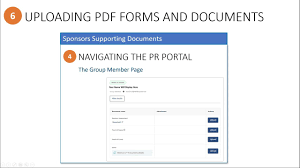
If you are applying to the Mangosuthu University of Technology (MUT) for the 2027 academic year, uploading your supporting documents correctly is an important part of completing your application. Missing or unclear documents may delay your admission process or cause your application to remain incomplete.
This guide explains the complete process for uploading supporting documents on the MUT portal for 2027 registration.
Direct Link to Upload MUT Supporting Documents
Applicants can upload their documents through the official MUT Student Portal:
You can also access the official MUT website here:
Mangosuthu University of Technology Official Website
What Are Supporting Documents?
Supporting documents are files required by MUT to verify your identity and academic qualifications during the application and registration process. (mut.ac.za)
These documents help the university process your 2027 application successfully.
Required Documents for MUT 2027 Registration
Before logging into the portal, prepare clear scanned copies of the following documents:
- Certified copy of your South African ID or passport
- Grade 11 or Grade 12 results
- National Senior Certificate
- Academic transcripts
- Proof of application fee payment
- Proof of residence
- Transfer letter or certificate of good conduct (for transferring students)
International applicants may also need:
- Study permit
- Medical aid proof
- Passport copy (mut.ac.za)
Step-by-Step Guide to Upload Supporting Documents on MUT Portal
Step 1: Visit the MUT Student Portal
Open the official MUT portal using the link below:
Step 2: Open the Student iEnabler
On the portal homepage:
- Click on Student Portal
- Select Student iEnabler
The iEnabler system is where applicants upload documents, track applications, and complete online registration. (mut.ac.za)
Step 3: Login to Your MUT Account
Enter your:
- Student number or application number
- PIN/password
If you are a first-time user and have not changed your PIN, MUT may provide a default PIN during registration. (mut.ac.za)
Step 4: Navigate to “Upload Documents”
After logging in:
- Scroll through the student menu
- Locate Upload Documents
- Click the upload section
Applicants with missing files may also see an “Outstanding Documents” notification on the portal. (BeraPortal)
Step 5: Select and Upload Your Files
To upload your supporting documents:
- Click Choose File or Browse
- Select the correct document from your device
- Upload one file at a time if required
- Ensure documents are clear and readable
Accepted file formats commonly include:
- JPG
- PNG
Using PDF format is usually recommended for better readability.
Step 6: Submit Your Documents
After uploading all files:
- Click Submit
- Wait for the upload confirmation message
- Check that the document status updates successfully
Always save copies of your uploaded documents for future reference.
Important Tips for Successful MUT Document Upload
To avoid upload problems during the 2027 registration process:
- Use certified copies where required
- Ensure documents are not blurry
- Rename files properly before uploading
- Keep file sizes small
- Use a stable internet connection
- Double-check all uploads before submitting
MUT 2027 Application and Registration Information
MUT has opened applications for the 2027 academic year, and students are encouraged to apply early to avoid delays and system congestion. (Varsity Wise)
Applicants should regularly monitor their portal and email for updates regarding:
- Outstanding documents
- Admission status
- Registration notifications
- Acceptance letters
MUT Contact Details
If you experience difficulties uploading your supporting documents, contact MUT directly:
- Phone: 031 907 7111
- Admissions Call Centre: 031 819 9299
- Email: [email protected]
Official website:
Mangosuthu University of Technology (MUT)
Conclusion
Uploading supporting documents on the Mangosuthu University of Technology (MUT) portal is a vital step for completing your 2027 registration and application process. Ensure that all required files are certified, clear, and uploaded before the application closing date to avoid delays.
Using the official MUT Student iEnabler portal correctly will help you complete your application smoothly and improve your chances of successful admission.

Conversation
0 Comments