

Uploading supporting documents is one of the most important steps when applying to Sefako Makgatho Health Sciences University (SMU) for the 2027 academic year. Your application may not be processed if all required documents are not uploaded correctly and on time. (Southern Methodist University)
This guide explains the complete process for uploading supporting documents on the SMU online application portal for 2027 registration.
Direct Link to Upload SMU Supporting Documents
Applicants can upload supporting documents using the official SMU student portal below:
SMU Supporting Documents Upload Portal
You can also access the official SMU online application page here:
About Sefako Makgatho Health Sciences University (SMU)
Sefako Makgatho Health Sciences University is one of South Africa’s leading health sciences universities, offering undergraduate and postgraduate programmes in medicine, pharmacy, dentistry, nursing, public health, and related fields.
Applications for the 2027 academic year officially opened on 1 April 2026. (Southern Methodist University)
Documents Required for SMU 2027 Registration
Before starting the upload process, prepare certified and clearly scanned copies of the following documents:
- Certified copy of your South African ID or passport
- Grade 11 final results (for current Grade 12 learners)
- National Senior Certificate/Matric certificate
- Academic transcripts and qualification certificates
- Proof of payment for the application fee
- Marriage certificate (if applicable)
- SAQA evaluation certificate (for international qualifications)
- Study permit and medical aid proof for international students
SMU requires all documents to be uploaded individually and clearly scanned. (Southern Methodist University)
Step-by-Step Guide to Upload Supporting Documents on the SMU Portal
Step 1: Visit the SMU Upload Portal
Open the official upload portal below:
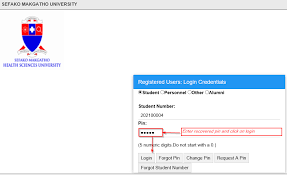
Step 2: Login to Your Student Account
Enter your:
- Student number/application number
- PIN/password
Use the login details created during your online application process. (Southern Methodist University)
Step 3: Open “Academic Application”
After logging into the portal:
- Locate the left-side menu
- Click on Academic Application
- Select the upload section
This area allows applicants to upload outstanding supporting documents. (Southern Methodist University)
Step 4: Select “Certificate Seen” or Upload Documents
On the application page:
- Click on Certificate Seen
- Choose the document type you want to upload
- Browse your device and select the correct file
This section is specifically used for uploading supporting documents requested by SMU. (Southern Methodist University)
Step 5: Upload Your Supporting Documents
When uploading documents:
- Ensure files are clear and readable
- Upload one document at a time
- Use accepted formats such as PDF, JPG, or PNG
- Ensure each file is correctly labelled
PDF format is generally recommended because it maintains document quality.
Step 6: Submit and Verify Upload Status
After uploading:
- Click Submit
- Wait for the upload confirmation
- Verify that the uploaded document appears on your portal
Always keep copies of your uploaded documents and confirmation messages for future reference.
Important Tips for Successful SMU Document Upload
To avoid delays during the 2027 registration process:
- Use certified copies only
- Ensure scans are not blurry
- Rename files properly before uploading
- Keep file sizes manageable
- Use a stable internet connection
- Upload all required documents before the deadline
SMU states that incomplete applications may not be processed. (Southern Methodist University)
SMU 2027 Application Closing Dates
According to the official SMU application page:
- Undergraduate applications close on 31 July 2026
- Postgraduate applications close on 31 August 2026
Applicants are encouraged to submit documents early to avoid portal congestion near the deadline. (Southern Methodist University)
What Happens After Uploading Documents?
Once your supporting documents are uploaded successfully:
- SMU reviews your application
- Outstanding document notifications may disappear
- Your admission status may be updated
- Successful applicants may later receive registration instructions
Applicants should regularly monitor their email and SMU portal for updates. (South Africa Portal)
SMU Contact Details
If you experience difficulties uploading documents, contact SMU admissions support:
- Phone: 012 521 4058 / 5886 / 4315
- Official Website: SMU Official Website
Conclusion
Uploading supporting documents on the Sefako Makgatho Health Sciences University (SMU) portal is a critical step for completing your 2027 registration and application process. Ensure that all required documents are certified, clear, and uploaded correctly before the application deadline.
Using the official SMU upload portal correctly will help ensure your application is processed smoothly and without unnecessary delays.
Conversation
0 Comments